Your app password is the password you use to sign in to the ClearFront app on your streaming device. This is separate from the password you use to log in to your account on our website. Changing one does not change the other. This guide walks you through updating your app password.
Understand Which Password You're Changing
The ClearFront app password controls access to the app on your TV, phone, tablet, or streaming device. Your web account password is used only to manage your subscription, billing, and account settings at cfplatform.xyz. If you are trying to update your billing or account login instead, please see the related article on changing your web account password.
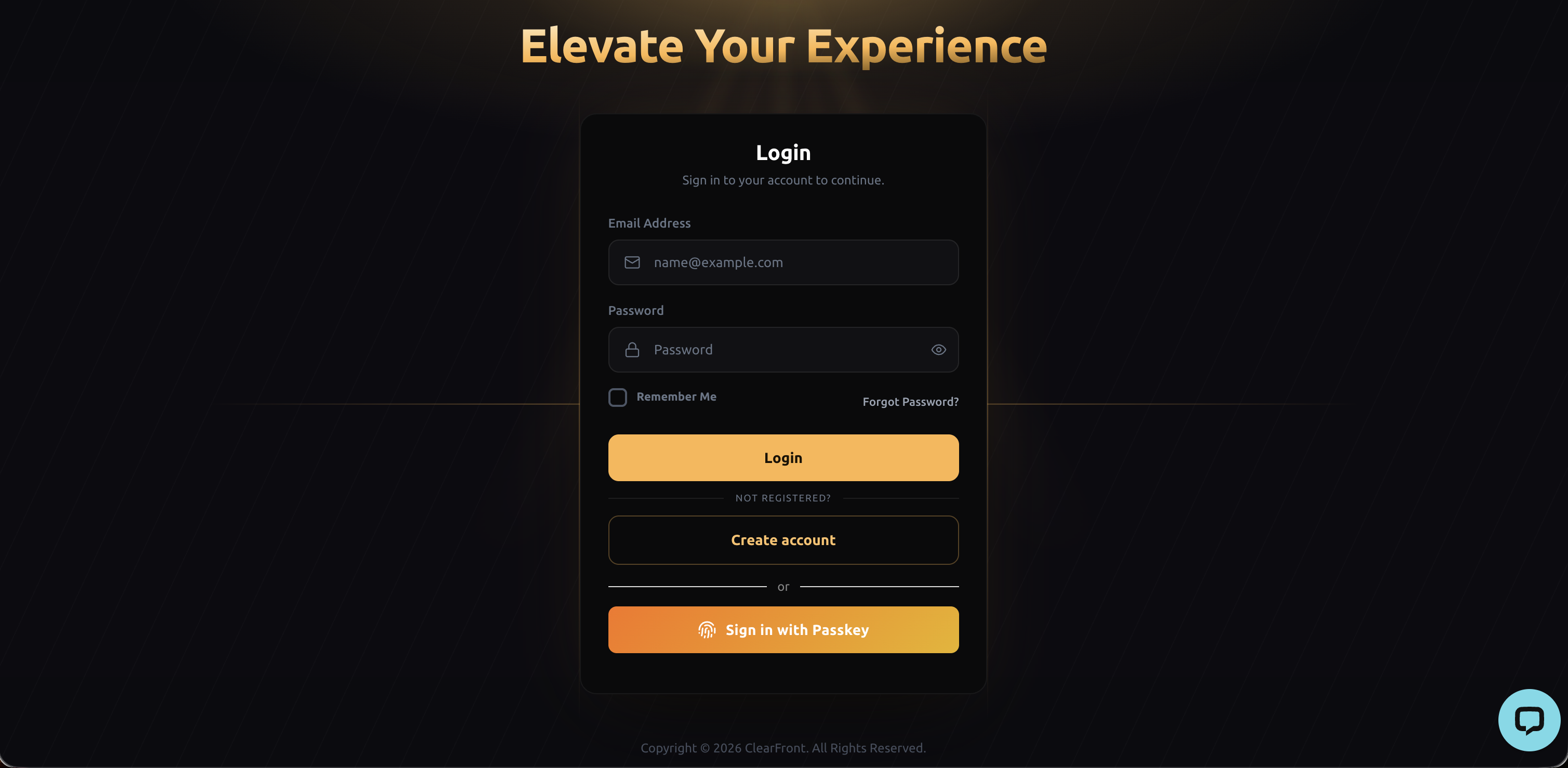
1. Sign-in into your ClearFront account using your Username and Password or with your Passkey, if you have one registered.
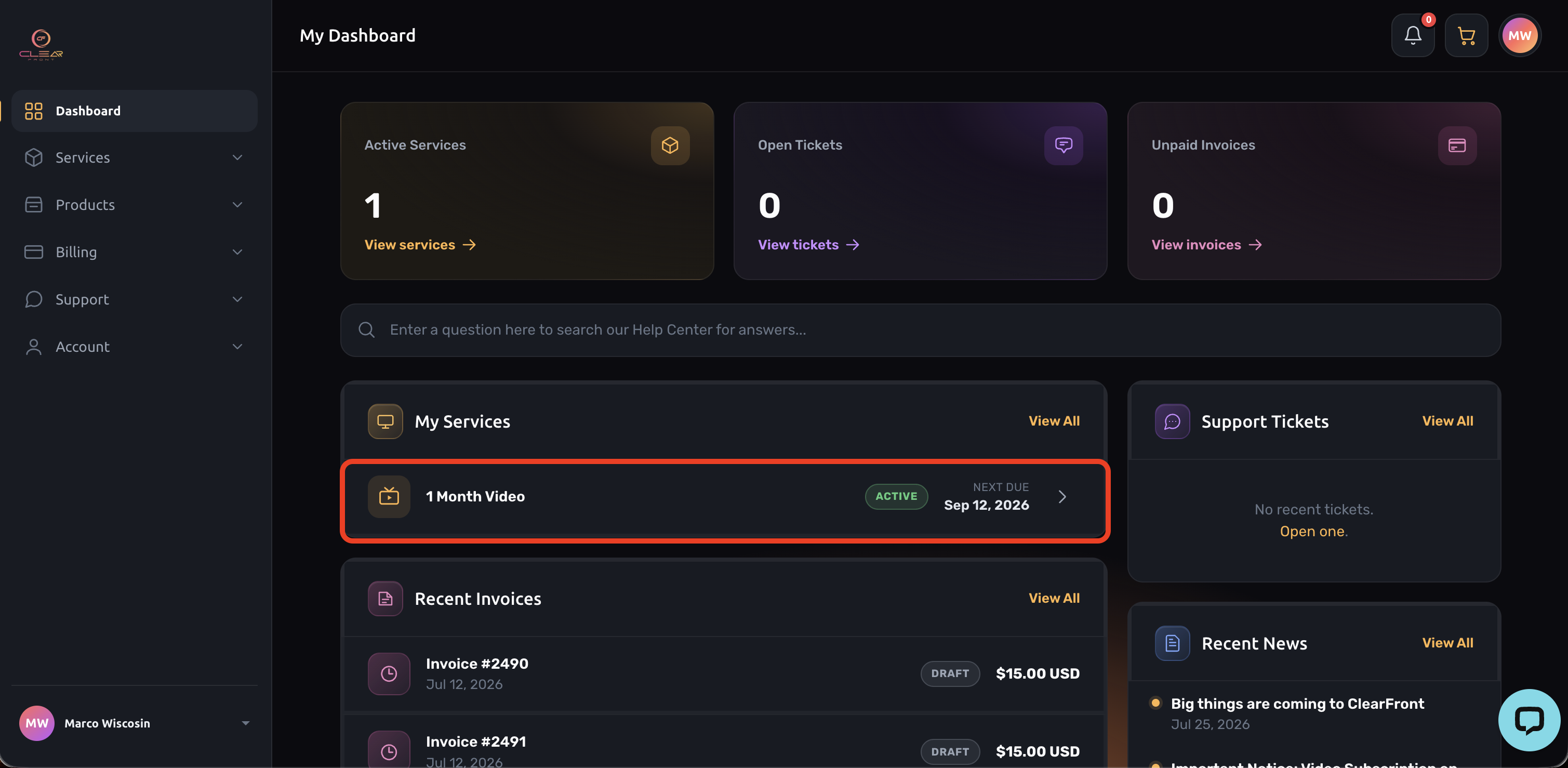
2. Select the service for wish you would like to update the password from the "My Services" menu.
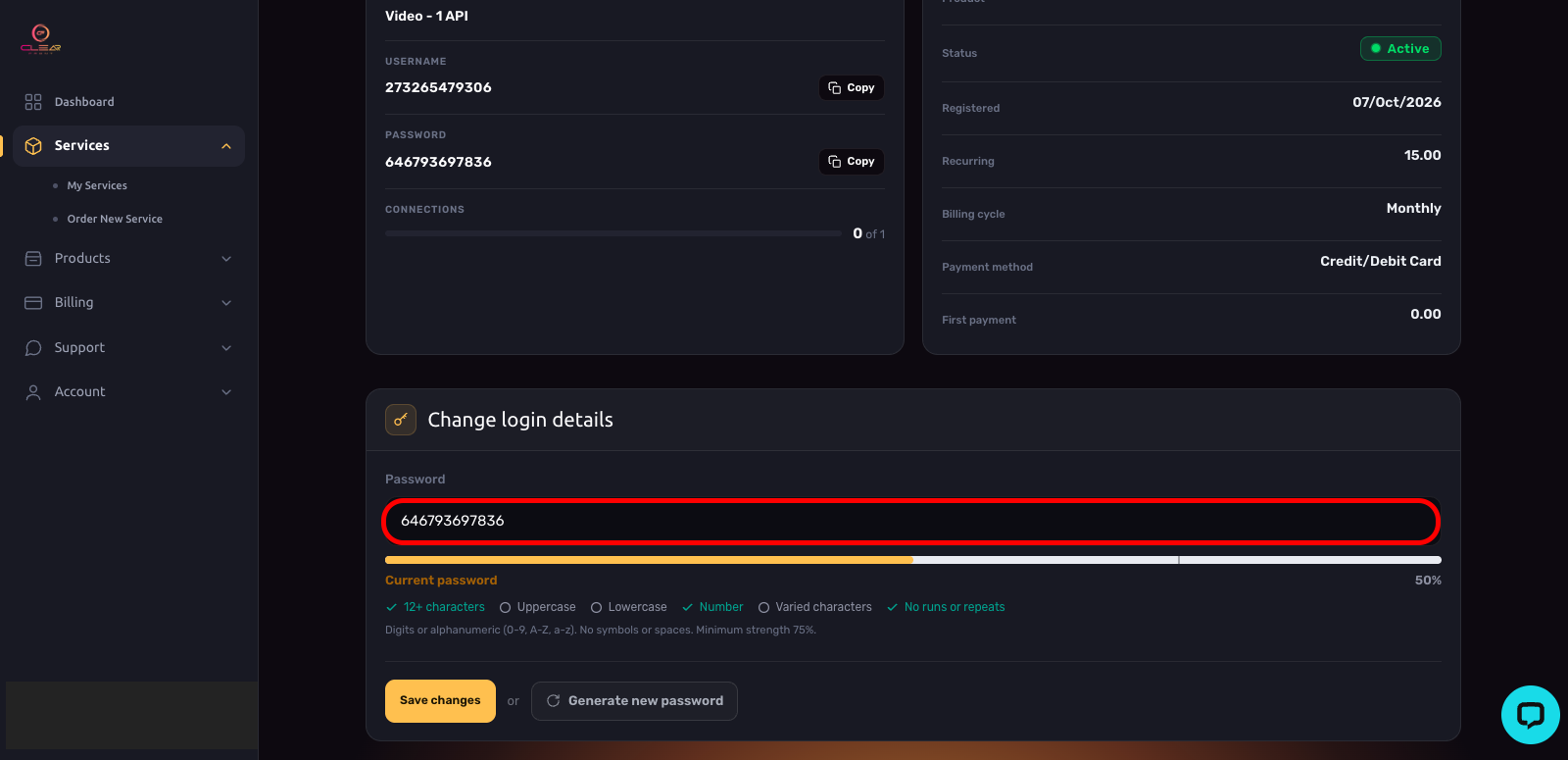
3. Scroll down to the "Change login details" section, type your new password.
For your security, the new password must meet the following criteria:
-
Minimum 12 characters long
-
At least 1 number
- At least 1 number
-
At least 1 uppercase letter
-
At least 1 lowercase letter
- No repeats.
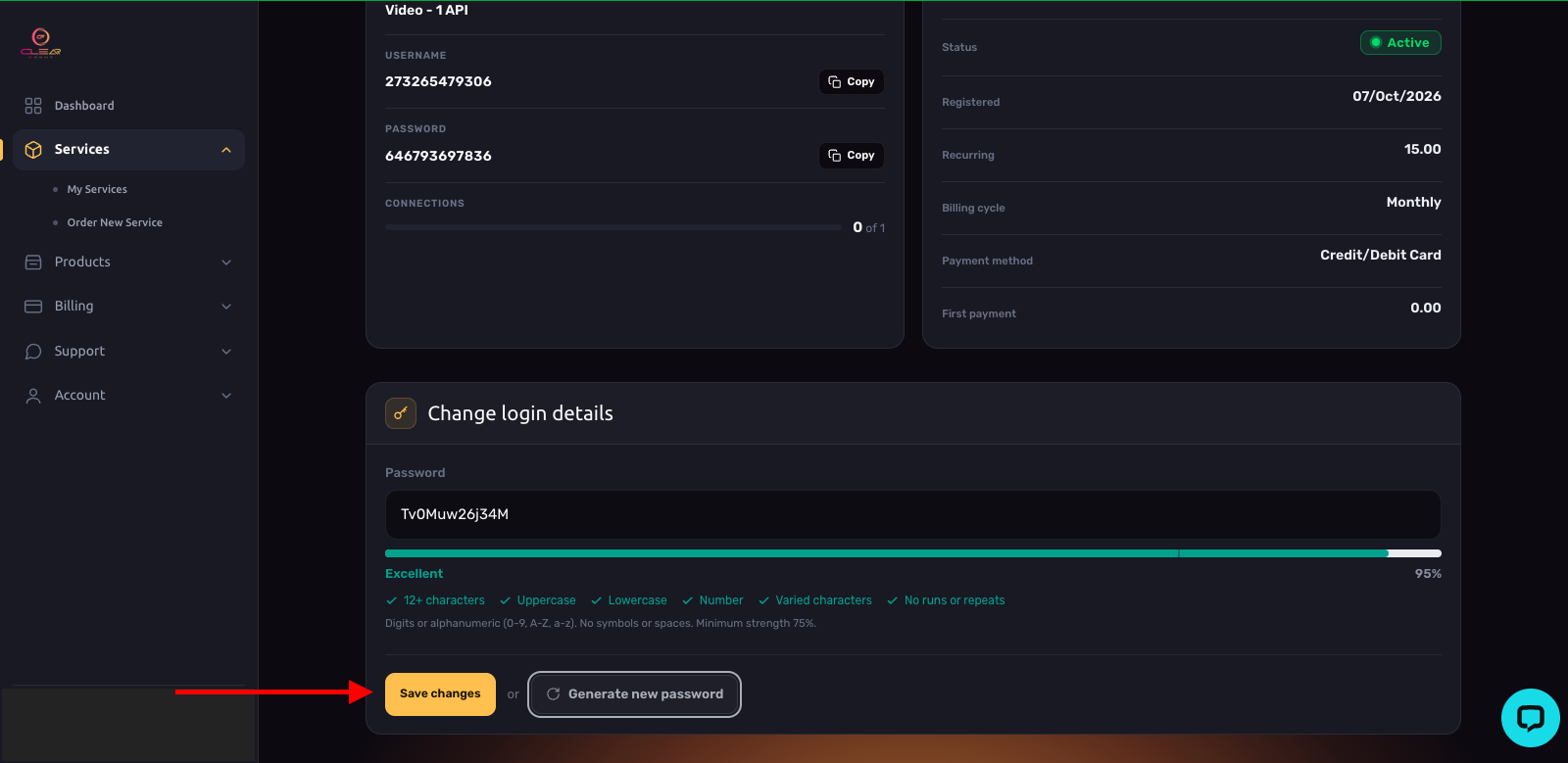
4. Select "Save Changes" to apply your new password. You will see a confirmation message once the change is successful.
5. Sign In Again on Your Devices
After changing your app password, you may be signed out of the app on your other devices. Sign back in on each device using your new password to restore access.
Need More Help?
If you have trouble changing your app password or cannot access your account, our support team is here to help. Contact us at support@cfplatform.xyz and we'll be glad to assist you.