Migrate Media Files from ClearFront Storage
In some cases, you may want to migrate media files that were previously offloaded to a ClearFront Storage Zone back to your WordPress server. This could be to simplify management, regain file ownership, or consolidate your hosting setup.
Follow this step-by-step guide to safely complete the process without affecting your site’s functionality.
Before proceeding: Always create a complete backup of your WordPress files and database. This ensures you can restore your site if needed.
Step 1: Copy Files from ClearFront Storage
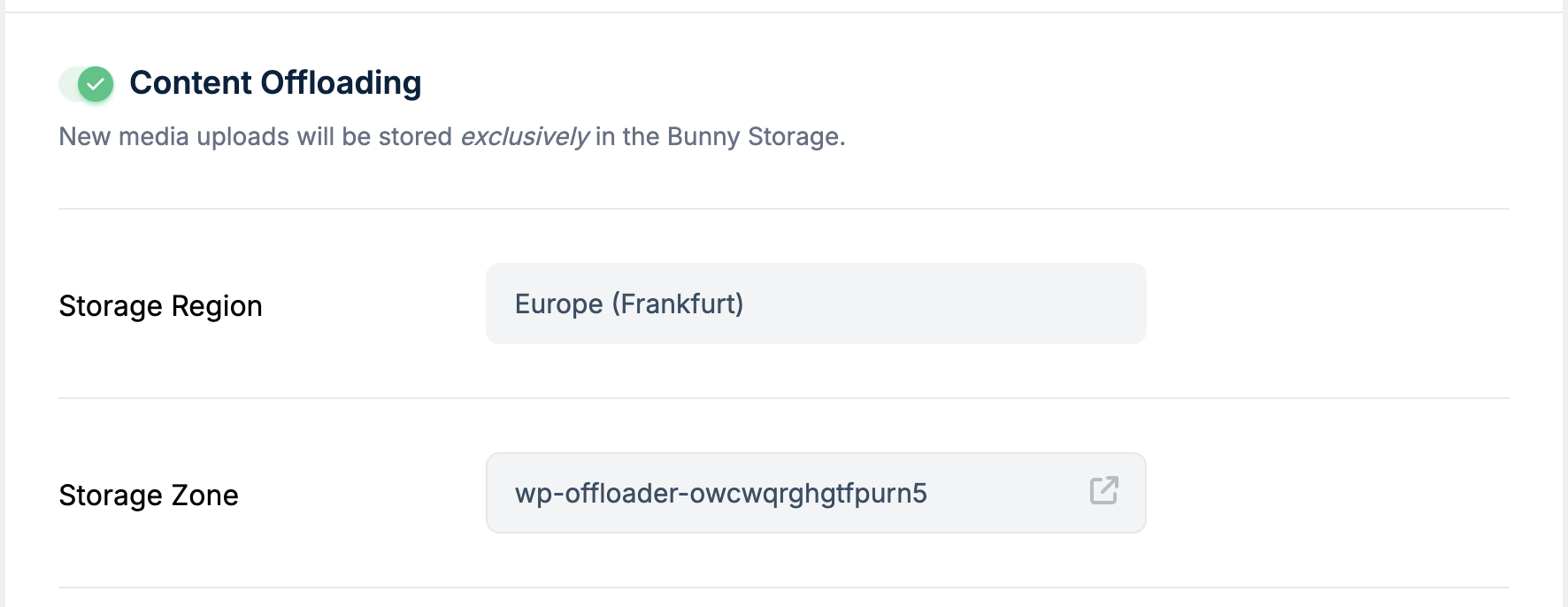
- In your WordPress Admin, go to the cfplatfrom.xyz → Offloader tab.
- Note the Storage Zone listed; this is where your offloaded files are currently stored.
- Download or transfer the files from the Storage Zone to your WordPress server. You can do this via FTP or by downloading from the ClearFront Storage dashboard.
- Ensure you preserve the original directory structure so WordPress can correctly locate the files.
Step 2: Update the WordPress Database
Once files are back on your server, you'll need to inform WordPress that these files are no longer offloaded.
Run the following SQL query (using phpMyAdmin or your preferred database tool) to remove the offload markers:
DELETE FROM wp_postmeta WHERE meta_key = '_cfcdn_offloaded';
This removes the _cfcdn_offloaded meta entries that tell WordPress the file is stored externally.
The name of the wp_postmeta table may vary depending on the table prefix used in your WordPress installation. While the postmeta suffix remains the same, the prefix (e.g., wp, wp3c_) may differ, resulting in names like wp3c_postmeta.
To confirm your prefix, check your database using phpMyAdmin, WP-CLI, or by listing the tables directly.
⚠️ Warning: Make sure you have a database backup before running any queries.
Verify Your Changes
- If you're no longer using ClearFront DNS: Verify that your media files load correctly. If everything works, you can delete the Storage Zone to stop recurring charges.
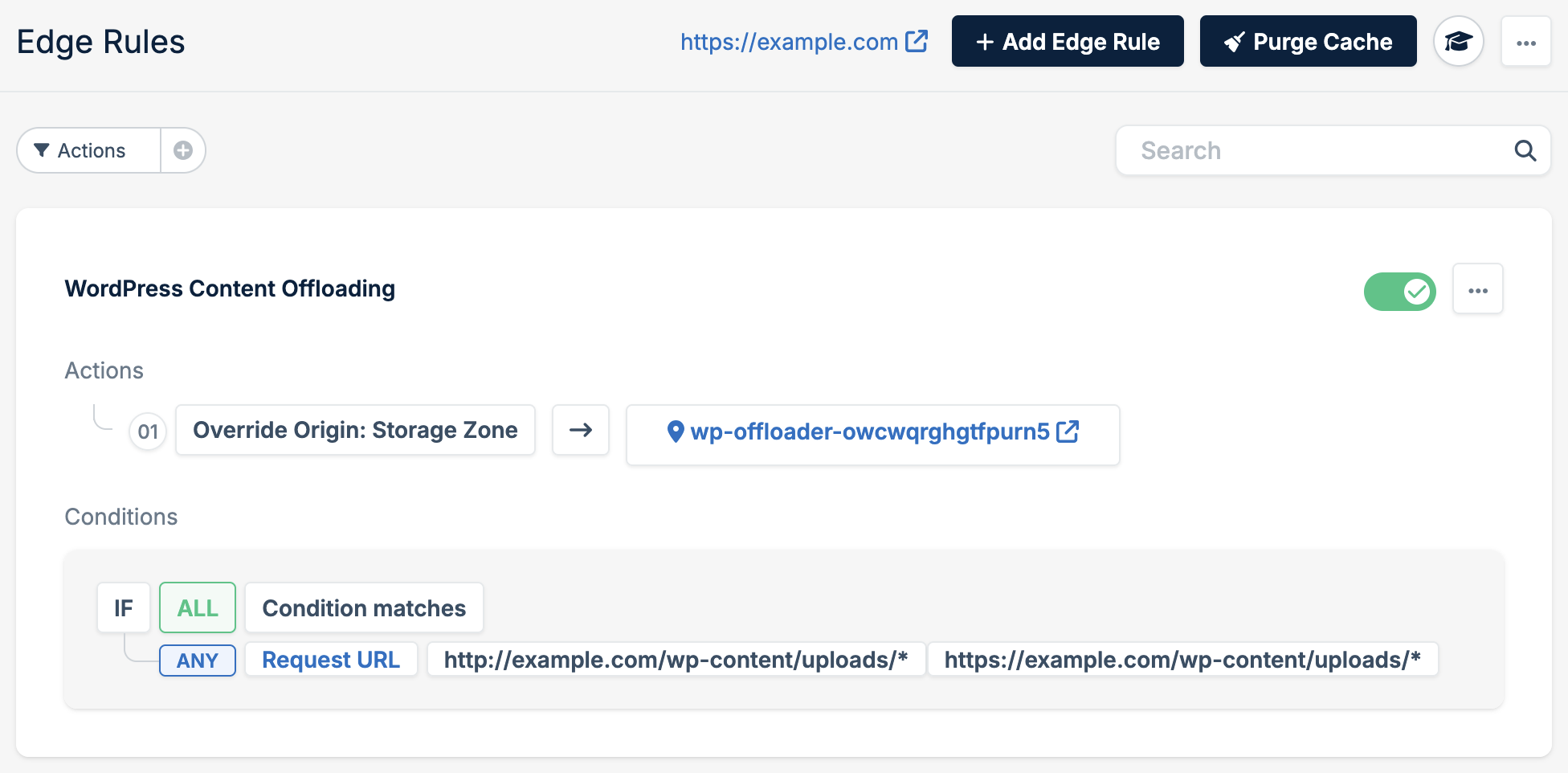
- If you're still using ClearFront DNS: Your files may still be served from the Storage Zone. To test if they now load from your server:
- Disable the Edge Rule called WordPress Content Offloading.
- Purge the cache for your Pull Zone.
Once verified, you can safely remove the files from the Storage Zone.